Budgets
Budgets let you set a monthly spending limit per category (Food, Transport, …). Open the Budgets tab.
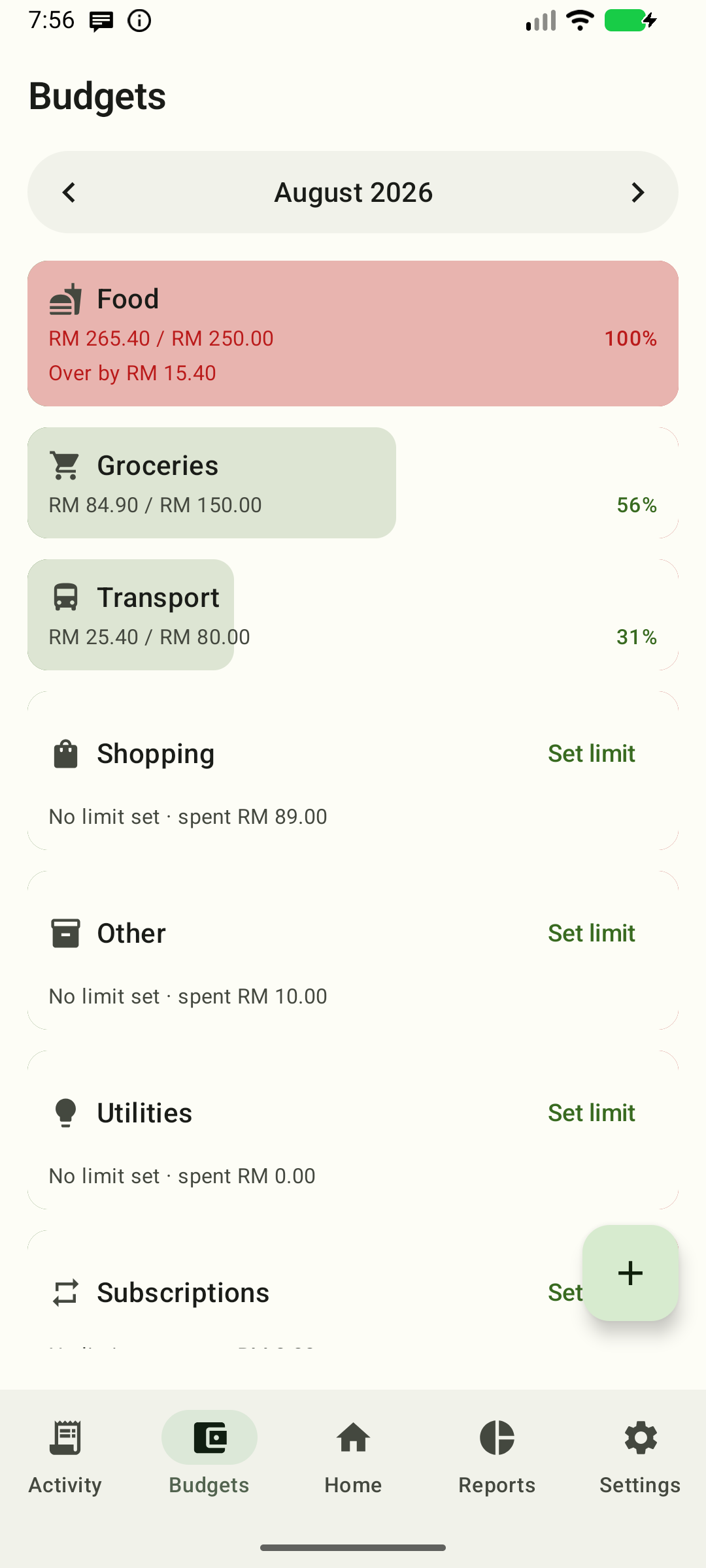
Month overview
The overview card at the top of the month shows the total limit across
categories, the month's spent total, the remaining amount and the uncapped
percentage used, with one progress track. If a
figure cannot be converted, the overview shows — for the affected values and
no progress instead of a partial total or a meaningless 0%.
Categories below the overview are grouped into Over budget, On track and No limit, each with its count.
Setting a budget
- Pick the month with the
‹/›arrows. - Find the category and tap Set limit or Edit limit to open the category editor.
- Check the displayed month and currency, enter the Monthly budget (optional), and tap Save. The selected month is used for new categories too.
The helper under the field matches your draft: without an effective limit it explains that the monthly limit is optional and applies until you change it; when a limit already applies (including one inherited from an earlier month) it explains that leaving the field blank and saving clears the limit from the selected month.
A budget you set for a month keeps applying to every following month until you change or clear it. The same category can have a different limit each month — set a new limit in a later month and that month onward uses the new value. The editor names the source month when a limit is inherited. Changing the base currency in Settings keeps an existing limit in its original currency; new limits use the base currency shown when you open the editor. Category-only changes leave budget history intact.
Blank the field or tap Clear limit, then Save, to clear the limit from the selected month onward until the next change. Earlier months stay unchanged, and an older limit does not come back later.
If you change anything and press Back — the toolbar arrow or system Back — the editor asks whether to Save, Discard, or keep editing. Saving runs the same validation as the Save button, so an invalid amount or blank name keeps the editor open with your draft; discarding leaves without changing anything, and an unchanged or reverted draft closes straight away.
Custom categories
Categories are seeded with the defaults (Food, Transport, …). You can add your own:
- Tap the + action in the Budgets app bar (New category). It is always available for the month you are viewing, including a month with no categories yet.
- Enter a name, pick an icon, and optionally set a monthly budget.
- Tap Save.
The icon picker covers all Material icons — tap the icon row, then use the search box (e.g. type "car" for transport icons) or scroll the grid to find one.
Custom categories behave like the defaults everywhere: they appear in budget cards, transaction filters, detail-screen category chips, and Reports. You can give each one its own auto-classification keywords in Settings → Categories & automation → Category keywords.
If Save is refused, the editor marks only the field at fault — a blank or duplicate name, or a limit that reads as zero or unreadable — and clears the message as soon as you correct that field.
If a save can't be completed — for example the storage write fails — nothing is saved at all: the editor keeps your draft and shows a message that your edits are kept. Tap Save again to retry. While a save is running the fields, the icon picker, Clear limit and Save are disabled and Back is ignored until it finishes, so a second tap can't start a duplicate save and can't drop a late edit.
Reading a budget
Each category card shows, in order:
- the spent amount — the card's most prominent figure;
- of X — the monthly limit, shown beneath it as supporting text;
- a 4 dp progress track inside the card that fills as you spend and turns red (error color) when over;
- a percentage status that is your real usage, so an over-limit card can
read more than 100% (e.g.
120%) while the bar stays full; - Over by X — when you've exceeded the limit;
- No limit set — a category without a budget still shows its spent amount, with no progress bar.
When a category's spending can't be fully converted, the card doesn't pretend: if none of it could be converted the amount shows —, and if only part of it could the amount is labelled Converted subtotal — some amounts couldn't be converted. Either way the percentage, progress track and over-limit note are hidden, because a partial total can't say how much of the limit you've used.
Over-limit amounts stay readable against the card in light, dark, and dynamic-color themes.
Foreign-currency spending is converted to your display currency with your exchange rates; unconverted rows are excluded and called out in a footnote below the list. The footnote names the real reason — a missing rate points you at Settings, an amount outside the supported range does not, and a budget limit that couldn't be converted says so.
Cards are ordered by group — Over budget, On track, No limit — then by how much of the budget you've used: the closest to (or over) its limit comes first within its group, ties are broken by actual spend, and categories without a budget — or whose spending can't be fully converted, so their usage is unknown — come last. The month overview stays above every group.
On wide windows — tablets, desktop, landscape — the card list is centred and kept to a comfortable width instead of stretching across the whole screen.
Cards animate in, out and when their order changes (for example after an edit), and the swipe reveal is clipped to the card's rounded corners. When you change month the label and the card list fade to the new month together, so a month is never shown beside another month's amounts.
Only completed expenses count toward a budget.
Editing / deleting
Tap the card itself — or its visible Edit limit / Set limit label — to open the category editor for the displayed month. The card is the primary action, so you never need to discover swipe or the overflow menu to set a budget.
Each card also has a trailing More actions menu (the ⋮ icon) that opens:
- Edit limit (or Set limit) — opens the category editor for the displayed month.
- View transactions — opens Activity filtered to that category and the displayed month; Back returns to Budgets.
- Remove limit — available when a positive limit exists, including for custom categories. After confirmation, clears the limit from the displayed month onward and keeps the category and transactions.
- Delete category — custom categories only. The confirmation explains that the category and budgets are removed and transactions become uncategorised.
The editor also lets you change a custom category's name and icon; default names stay locked. Its limit field shows the effective limit for the selected month, including a carried limit, with its currency and until-changed scope.
Swipe right remains an edit shortcut. Swipe left requests removal of a default category's limit, or deletion of a custom category, with the same confirmation. A default category without a limit has no left-swipe action: the card stays put and no red reveal appears. Clearing a limit also removes that swipe immediately. Accessible card actions provide the same operations without dragging.
Notes
- Budgets are per category. A limit carries into every later month until it is changed or cleared.
- Clearing (or swipe-deleting) a budget removes the limit from that month onward; it doesn't delete transactions.
- Deleting a custom category removes its budgets too, and existing transactions lose their category assignment.