Settings
Settings starts with a task index grouped under headings: Tracking (Banks & capture, Categories & automation), Preferences (Currency, Appearance), Privacy & data (Privacy & lock, Backup & data), and About. Tap a task to open its screen; Back returns to the index. The search field at the top is the only settings search — task screens do not repeat it — and it matches the app's other search field (rounded pill, search icon, inline hint and a clear action) while filtering task names and descriptions locally; tap a result to open that task. Groups with no match drop out of the list entirely. For example, “export” finds Backup & data, and “PIN” finds Privacy & lock.
Task screens share the app bar and place each section's uppercase label outside and above its rounded card, so the rows stay one calm surface.
Most controls save immediately. Exchange rates and category keywords apply only with their Save buttons. Leaving either dirty editor asks you to Keep editing or Discard changes; edits are never saved silently.
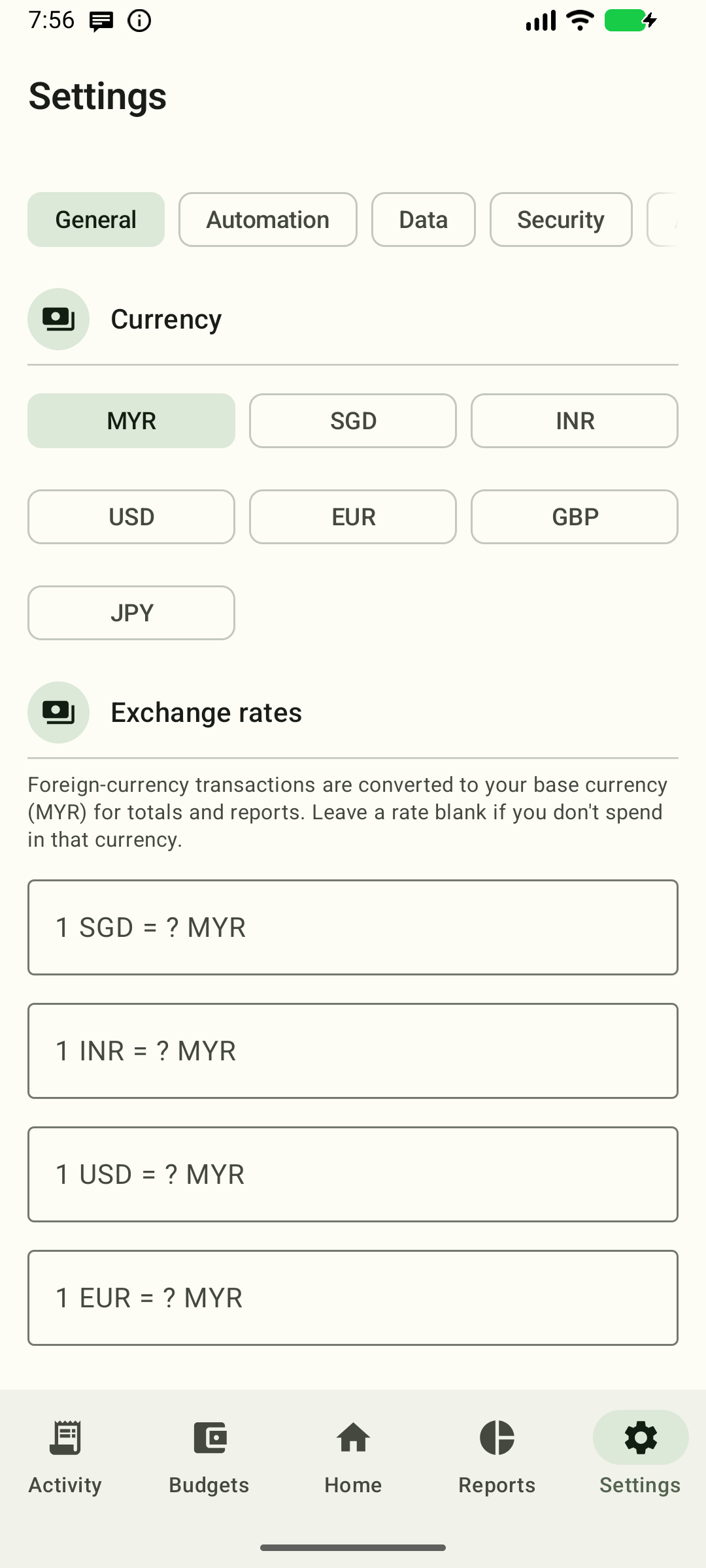
Currency
Base currency
Pick your display currency from the ones you've enabled. MYR, SGD, INR, USD, EUR, GBP, JPY, and PLN are on by default; the chips show ISO codes only (no symbols). Applies to formatting everywhere. Amounts are stored in minor units of their own currency, so changing this only changes how they're shown.
Supported currencies
Add currencies you spend in and remove the ones you don't. Add currency opens a list of the built-in set (AUD, CAD, CNY, HKD, TWD, NZD, THB, IDR, PHP, VND, KRW, CHF, AED, CZK, plus the defaults); the chip/row appears in every currency picker — base currency, exchange rates, and the transaction editor.
Removing a currency only hides it from pickers. Transactions already stored in it keep their currency and still show correctly, and any exchange rate you set for it keeps working. You can't remove the last remaining currency.
Exchange rates
If you spend in more than one currency, enter how much one unit of each
foreign currency is worth in your display currency (e.g. 1 SGD = ? MYR),
then tap Save exchange rates. Cross-currency totals on Home, Budgets,
Activity, and Reports use these rates; leave a rate blank if you don't
spend in that currency — those transactions are then excluded from totals and
called out in a footnote.
Rate values must be a plain positive decimal up to 1,000,000, with at most 6
decimal places after trailing zeros are removed (for example 3.45, 0.033,
0.000001). So 1.2345600 is accepted (it is 1.23456) and 1.2345670 is
accepted (it is 1.234567, exactly 6), while 1.2345678 is rejected. Very long
values, scientific notation (1e30),
negative or zero values, symbols, commas and letters are rejected: the field
shows an error naming that currency and Save exchange rates stays disabled
until it's fixed, so a bad number is never stored or silently ignored.
Clearing a field removes that currency's rate. Its transactions are then excluded from totals and called out in the footnote until you enter a rate again — the card says which currency is affected. A rate that needs fixing stays on screen even when its currency is hidden from pickers, labelled as hidden, so you can always reach a savable state.
Rates are tied to the base currency you entered them under. Changing the base currency asks you to confirm and then clears every rate, so the old numbers aren't reused as the new base's rates — re-enter them under the new base. Until you do, foreign-currency rows stay excluded and the totals keep their footnote. If the base changes while you have unsaved rate edits, those numbers stay on screen under their original currency's labels but can't be saved — tap Reload exchange rates to discard them and enter rates for the new base. Only one change runs at a time, and a second request is refused with a note rather than dropped. A base switch or reload freezes the fields for its whole duration. A save does not: you can keep typing while it runs, and if the draft changed underneath the save those newer edits stay dirty (and protected by the leave prompt) instead of being overwritten.
Appearance
- Theme — System / Light / Dark. Light and dark use the Warm ledger paper and forest-green palettes.
- Dynamic color — use your wallpaper's colors (Android 12+). When on, the Warm brand colors are replaced by steps of the wallpaper-derived scheme; your light/dark choice still applies. Amounts stay tabular and expenses stay neutral, never error red.
Banks & capture
Tracked bank apps
Turn each bank and wallet app on or off to choose what AutoBudget tracks. This takes effect immediately — turning an app off stops capturing its notifications. Untracked apps' notifications are ignored entirely.
If you finished setup with Use manual tracking for now, turn on your bank apps here and grant notification access (in the system settings) to switch automatic capture on later. Your manually added transactions are kept.
Each immediate setting on this page is one switch row: tap the title or the switch, and screen readers announce the row's name and on/off state once. A cancelled permission prompt leaves the setting off.
Notify on capture
Toggle whether AutoBudget posts a silent notification (no sound, no popup) when it turns a bank alert into a transaction. On by default. Tapping the notification opens that transaction's detail screen. Turn it off if the tray entries get noisy.
On Android 13+ the first time you switch this on, Android asks for the "send notifications" permission — allow it or no notification will appear (transactions are still captured either way). The same prompt appears once at the end of onboarding.
Record transaction locations
Toggle whether AutoBudget captures the device location when a payment notification arrives (off by default). The location is stored encrypted on this device only and never transmitted. When on, Android asks for the location permission; after granting it, AutoBudget opens the app's Android settings page — set Location to “Allow all the time” so capture also works while the app is closed (a red hint appears under the toggle until it is set). Deny the permission and the toggle stays off. You can always add or fix a transaction's location from the editor's Location row.
Categories & automation
Parse rules
AutoBudget reads each bank's alerts using small patterns — one set per app. Tap a row to open the rule editor for that app:
- Toggle the switch to enable/disable a rule (takes effect immediately).
- Expand a rule to edit its pattern, inspect its priority, and test it.
- Pattern edits are kept as a draft: type freely, then tap Save to apply or Discard to revert. Nothing changes for capture until you Save, and leaving with an unsaved edit asks first. An incomplete or invalid pattern shows an inline error and cannot be saved.
- Live test — paste a sample alert and tap Parse with all rules (or
Test this rule on a single rule) to see what AutoBudget would extract:
amount, direction, status, and merchant. The test uses the current draft;
disabled rules are reported as disabled, and rules that cannot compile are
skipped and named with the reason (invalid syntax or missing amount group).
The amount is shown as formatted currency (e.g.
RM 17.23), the same way the transaction displays it.
Advanced. Rules are editable patterns, written as regular expressions. Test your changes before saving them — a saved pattern that no longer compiles is skipped for that bank (its other rules keep working) and is flagged in the editor for repair. If no rule matches, alerts fall back to the review queue.
Category keywords
Edit the keyword lists that auto-categorize merchants. One field appears per expense category — the defaults (Food, Groceries, Transport, Shopping, Utilities, Subscriptions, Entertainment, Health, Other) plus any custom categories you created from the Budgets tab.
- Keywords are comma-separated; a merchant containing any keyword maps to that category.
- Stored values replace defaults per category (they don't merge).
- Tap Save keywords to persist (the button enables when changed).
- User category overrides (from the transaction editor) always win over keywords.
- Renaming a custom category keeps its keywords (the stored entry is re-keyed automatically).
Backup & data
Export
This is a transaction export, not a complete app backup. The card states what is included — your visible transactions with their items and notes, their location snapshots, and the category and account identity JSON uses to restore them — and what is not: hidden transactions, receipt and attachment files, budgets, settings and security, custom parse rules, correction mappings, and the review queue. No full app backup is provided, so clearing app data or reinstalling can't be undone from this file; keep receipts and attachments somewhere else. Neither export is encrypted.
- Export CSV / Export JSON — opens the system save dialog where you pick the destination folder and file name. Rows: occurred_at, merchant, amount, currency, direction, status, category, account, source, note, parse_source, raw_json, items, latitude, longitude, accuracy_meters, location_provider, location_captured_at, place_name, place_id. An export is confirmed as saved only once the file has actually been written and closed: if the destination refuses the write, or the export can't be prepared, you see an error instead and can tap Export CSV / Export JSON again to retry without leaving this screen.
- Export CSV is a spreadsheet export for analysis only — AutoBudget never imports CSV, so it can't restore anything.
- Export JSON is the restorable transaction backup, and only saves a file this app can restore. If your ledger would produce a backup larger than the 16 MB import limit, the export is refused before the save dialog opens — nothing is written and the message tells you to reduce your data (for example delete very old transactions) and try again. Transactions whose recorded time is before 1970 or exactly at the epoch are included and restore unchanged. This is a transactions-only backup, not a full backup.
Import
- Import JSON — pick an exported JSON file. Amounts are re-parsed with their currency; rows already in your ledger are skipped (an own backup restored over itself changes nothing), and you'll see how many were added. A current backup also restores custom categories and accounts, creating any that are missing on this installation, and keeps accounts that share a bank and masked suffix but differ in type or currency separate. Older backups carry only a category name or account suffix: those links are restored only when exactly one existing match is found. Whenever a link is missing or ambiguous — including when this installation already has more than one account with the same identity — it is left empty and the message says how many references in the backup could not be restored, instead of guessing or changing an existing account. Empty files, files that aren't valid AutoBudget backups, unreadable files, files larger than the import limit and backups from a newer app version show a clear error and change nothing.
Offline map pack
This has its own card directly beneath the export/import card.
- Import pack / Remove — the location picker draws on an offline
basemap. A small country overview ships with the app; importing a
.pmtilespack (a single-file map archive) unlocks street-level detail. Packs are built from OpenStreetMap data — grab the dated Malaysia pack from the project's GitHub releases page. The installed pack's file name is shown in the section; Remove deletes it and falls back to the overview.
Delete all data
- Delete all data — wipes transactions and the review queue (categories, budgets, rules, and settings are kept). Confirm in the dialog.
Deleting is permanent and cannot be undone. Export first if you want a backup.
Privacy & lock
See Security & privacy — app lock (PIN + biometric), auto-lock, lockout.
About
A short explainer describes what the app does, then shows which build you're running:
- Version — version name (build code), e.g.
1.2.3 (10203). - Build date — UTC timestamp of when the APK was built.
- Revision — the short git commit the APK was built from.
- Privacy policy — a link to how AutoBudget handles your data (opens in your browser).
- Support — a clickable
mailto:link for questions, support and enquiries (app-dev@zharif.myby default).
Use the version and revision when reporting a bug.