Troubleshooting
Nothing is being captured
Work through in order:
- Automatic capture configured and on? With bank apps tracked, Home shows a red repair warning — Automatic capture needs attention… — with a Turn on action when notification access is off. Tap it and switch AutoBudget on in the system notification-access list, then re-check (see Home → Capture status). Without access, nothing is captured. A neutral manual tracking note instead means no bank app is tracked yet.
- Is the bank app tracked? Settings → Banks & capture → Tracked bank apps — the bank must be turned on. Untracked apps are ignored completely.
- Make a real payment and check Activity. Capture happens in real time on posted notifications.
- Force-stopped apps receive no notifications — if AutoBudget (or the bank app) is force-stopped or the device was off, those alerts are lost. Only notifications received while the listener is enabled are captured.
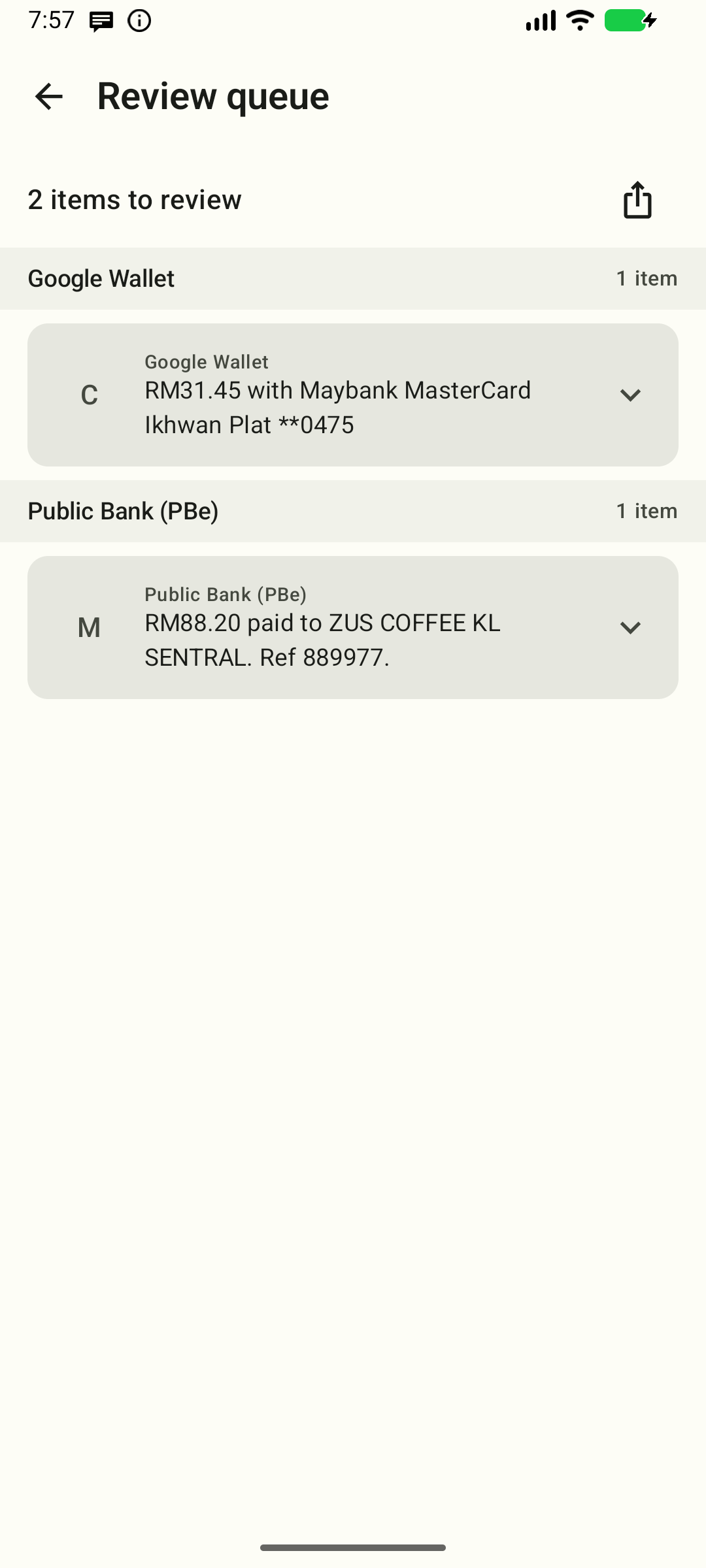
- Check the review queue — the alert may be waiting there (Review strip on Home) because the format wasn't matched.
Transactions appear in the review queue instead of the list
The alert format wasn't matched by any parse rule, or the content was masked. You can:
- Create transaction from the queue (amount/merchant are pre-filled when the parser could read them).
- Add/edit a rule — Settings → Categories & automation → Parse rules → your bank → paste the raw text in the live test box to see what matches.
"Hidden notification details — review manually"
The bank app (or the OS) replaces the notification body with a placeholder for privacy. AutoBudget can't read the amount/merchant, so it queues the item for manual review. Nothing you can do except convert it manually.
Wrong amount or merchant
- Open the transaction and edit it.
- Amounts are parsed from text; unusual formats fail to parse and land in the queue instead. Check Settings → Categories & automation → Parse rules with the live test box.
- Some alerts carry a machine-readable JSON payload (Maybank/MAE); those parse with the highest confidence.
Duplicate transactions
The app stores an identical alert (same app, same time, same text) only once. Different alerts with the same amount (e.g. two identical payments) are correctly separate. If you see true duplicates, it usually means the bank posted two distinct notifications (with different timestamps).
Charges made with a card saved in Google Wallet often trigger a second notification from Wallet itself. AutoBudget keeps only the bank's own record of the charge and silently skips the Wallet mirror, so one payment produces one transaction.
Failed/pending transactions "disappear"
Failed, pending, and reversed transactions are stored but hidden — they don't count as spending. Toggle the eye icon on Activity to see them.
Wrong currency
Default is MYR. Change it in Settings → Currency. Note: existing transactions keep their own currency — changing the setting only changes how amounts are displayed.
Wrong category
- Edit the transaction and pick the right category — the choice is remembered for that merchant in that bank app (overrides keywords).
- Or adjust the keyword list: Settings → Categories & automation → Category keywords → Save keywords.
Budget shows wrong numbers
Budgets count completed expenses only (same rule as Home/Reports). Pending/failed/reversed and income are excluded. Also check the month selector — budgets are per category and carry into later months until you change or clear them.
App won't unlock / locked out
After 5 wrong PIN attempts the app locks for 30 seconds with a countdown. Wait it out, then try again. If you forgot the PIN there is no recovery path — uninstall and reinstall (this wipes your history).
I want my data elsewhere / on a new phone
Settings → Backup & data → Export, move the file, then Import JSON on the new device. Note:
- Import skips exact duplicates (same alert as one already imported).
- The database passphrase is device-bound — moving the app data itself is impossible by design.
App crashes or behaves oddly
- Check you're on the latest version.
- Export your data first, then Settings → Backup & data → Delete all data (or reinstall).
- Clearing app data or uninstalling permanently destroys your history — the DB key is unrecoverable.
Still stuck?
In a debug build, copy a failing notification (Review queue → long-press → copy JSON) — or use the queue's share icon to export the whole batch as compressed JSON — and send it to the support address in Settings → About, or file an issue on the project's GitHub, so the parse rules can be improved. Release builds hide these diagnostics actions and the copy hint.