Getting Started
Requirements
- An Android phone (Android 8.0 / API 26 or newer).
- The bank or e-wallet apps you want to track installed and signed in (Maybank2u, MAE, Touch 'n Go eWallet, Grab, Boost, BigPay, CIMB, Public Bank, RHB, ShopeePay, Wise, Google Wallet — or any app you add rules for later).
First run: onboarding
The first launch walks you through four steps. Each step shows Step N of 4 with a progress bar and keeps one primary action at the bottom of the screen; optional or manual choices sit below it in a quieter style. Continue moves forward and the step slides in from the reading direction, with the progress bar filling to match; the Back arrow reverses the motion. From the second step on, that Back arrow returns to the previous step without losing anything you already entered.
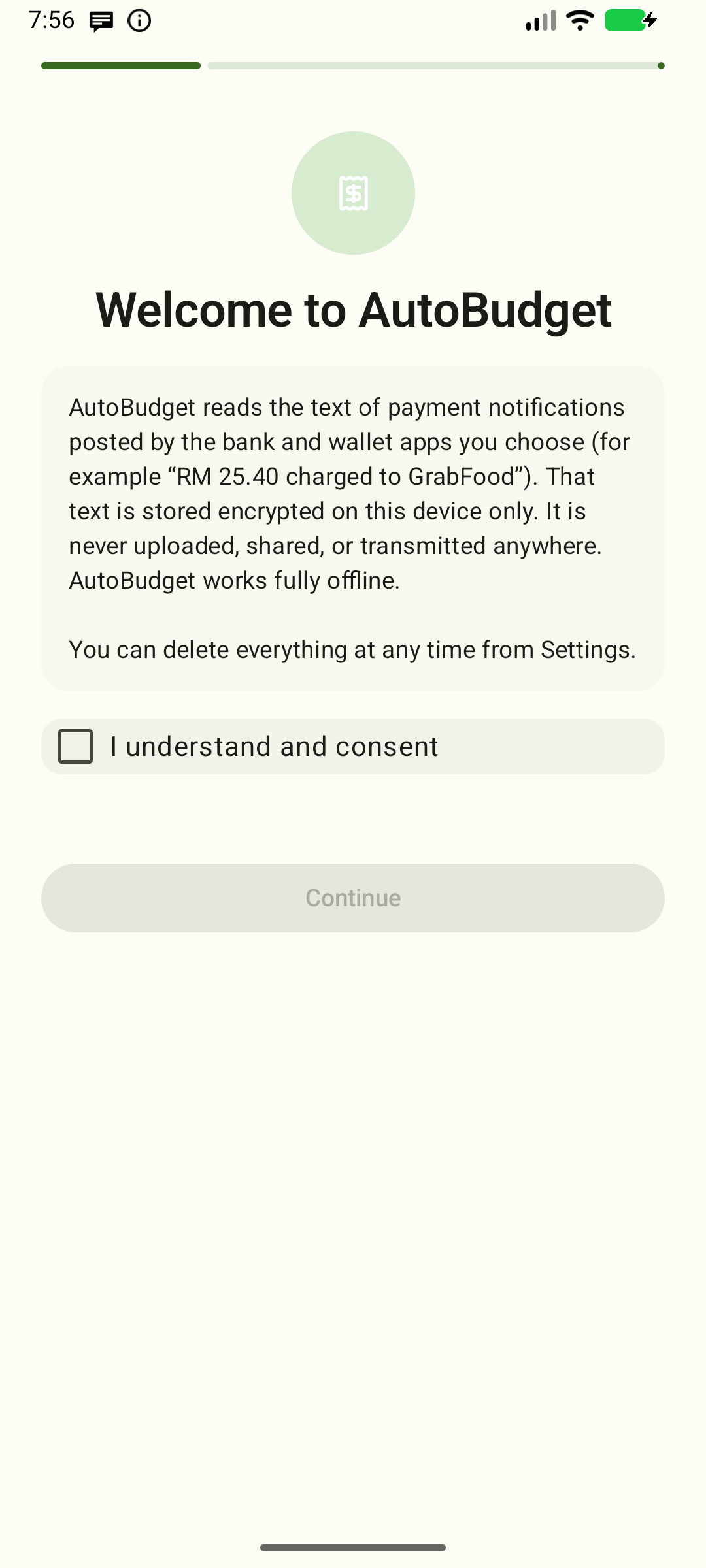
1. Consent
AutoBudget reads the text of payment notifications from the bank and wallet apps you choose (for example "RM 25.40 charged to GrabFood"). That text is stored encrypted on this device only — never uploaded, shared, or transmitted. Tick the consent box, then tap Continue.
2. Notification access (optional)
Automatic capture needs the system's notification access permission to see bank alerts. The step explains what AutoBudget reads and lists what that makes possible; then choose one path:
- Tap Allow notification access to open Android's notification-access settings (this is a special settings screen, not a normal permission dialog).
- Find AutoBudget in the list and switch it on, then come back. The app checks the toggle automatically; once access is on, the bottom action becomes an enabled Continue.
- Tap Continue to move to the location step.
Returning without granting keeps both choices available: you can reopen the settings or continue with manual tracking. AutoBudget never shows a disabled Continue in place of the permission action.
Prefer to start without it? Tap Use manual tracking for now to finish setup; Home then points you at the + action and you can enable automatic capture later in Settings. Nothing is captured automatically until you do.
Only notification access is requested. AutoBudget does not use SMS, storage, or contacts.
3. Location (optional)
Optionally record the device location when a payment notification arrives, so you can see where you spent money — even while AutoBudget is closed. Toggle Record device location for new transactions on and grant the location permission; when Android opens the app's settings page, set Location to “Allow all the time” so capture also works in the background. The location is stored encrypted on this device only and never transmitted. You can change this later in Settings.
4. Choose your bank apps
AutoBudget lists the supported bank and wallet apps installed on this device and turns them on for you. If none of your apps appear, or one is missing, turn on Show all supported apps to see the full list; Not installed marks the ones you don't have yet.
Changing what's shown never changes what's tracked — turn each app on or off to choose what to track. (If you chose Use manual tracking for now, this step is skipped; pick apps later in Settings.)
Tap Finish when at least one app is selected. On Android 13+ you'll also be asked for the "send notifications" permission — this powers the silent "transaction captured" notification. You can skip it; capture still works, you just won't get the tray entry. You can always grant it later in Settings.
After onboarding
Notifications from your chosen apps are captured automatically. Each payment alert becomes a transaction within seconds:
- Parseable alerts (amount + merchant recognized) appear in the Activity ledger immediately.
- Unparseable or masked (hidden by the bank/OS) alerts land in the review queue — see Review queue.
If you chose Use manual tracking for now (or no bank apps are tracked), capture is skipped and you log each payment yourself with the + action above the bottom bar on Home, Activity or Budgets. Home shows neutral manual-tracking guidance, not a warning. Your manual entries are kept when you enable automatic capture later in Settings.
Moving between screens
Use Home, Activity, Budgets, Reports, and Settings in the bottom bar (or the side rail on wider screens). Home is first and Settings is last. Tabs fade between views; tapping the selected tab keeps your current view. Opening an editor uses a short slide and fade, with the reverse motion when you go back.
Tip: keep notification access on
If you track bank apps and notification access is off, AutoBudget captures nothing. Home shows a repair warning — tap Turn on to open the system notification-access settings, switch AutoBudget on, and come back; the warning clears once access is back. Manual-only setups show neutral guidance instead. You can always add transactions by hand in the meantime.
Next steps
- Home — read your monthly snapshot
- Activity — browse and manage your log
- Troubleshooting — if something isn't captured